
A beginner’s magazine
Make room to remember.
Your first note-taking habit with Obsidian and AI
At work and in everyday life, turn records into material for your next decision.
English PDFKeep your records. Keep your judgment.
At work and in everyday life, turn records into material for your next decision.
Why did you put that decision on hold? What needs checking before you move ahead? Write down what you have been keeping in your head. Choose the parts to organize with AI, then bring your own judgment back to your notes.
This feature is an introduction to that small habit. You will not need GitHub or a command line. Start by trying it once with a fictional note.
Keep your records. Keep your judgment.
A magazine is also available to save or print. The PDF is in English: 28 portrait A4 pages, approximately 7.6 MB.
Do not run the business from memory alone.
Keeping records is about more than collecting information. It gives you a way back to earlier reasoning and unresolved questions when you need to decide again.
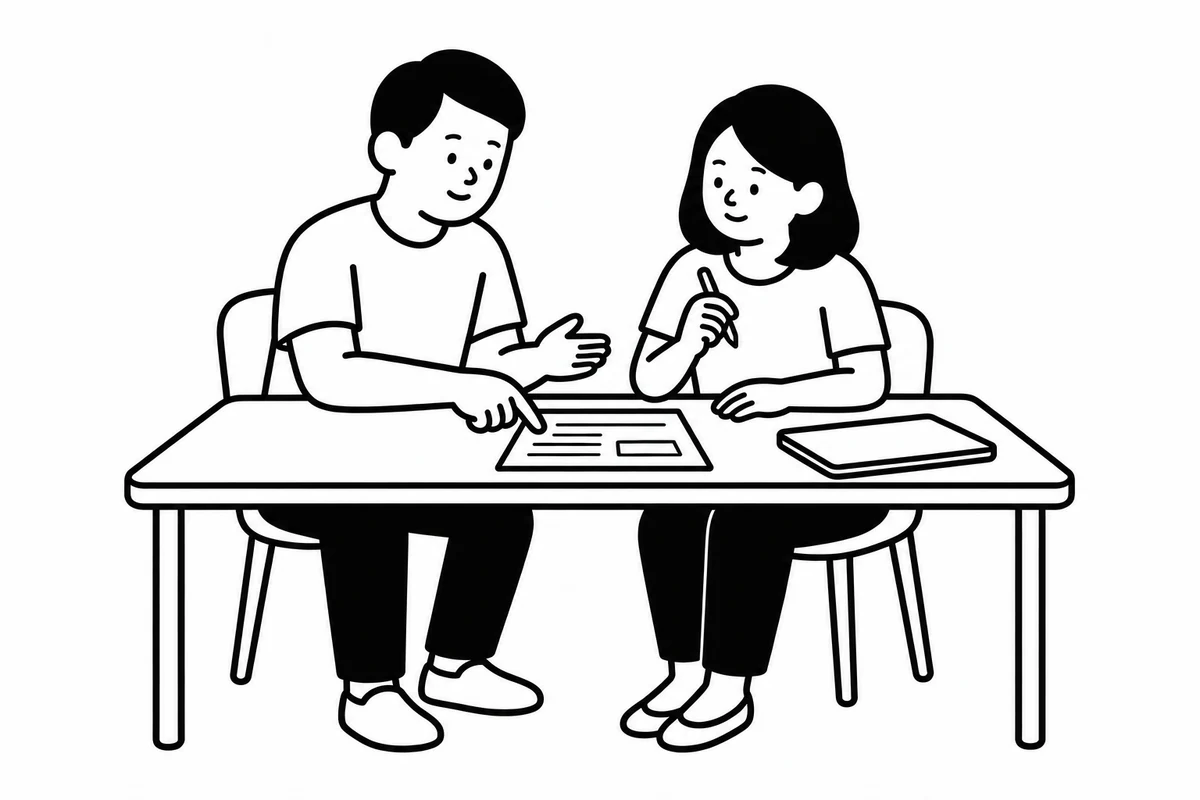
Imagine that you left this note about a potential project.
Fictional record

Decision: Put Company A's new project on hold for now.
Reason: We want to prioritize the current project's deadline.
Still unknown: The team's available capacity and Company A's preferred deadline.
The next meeting can start with today's question: “Have we checked capacity and the requested deadline?” You have a record to consult instead of first trying to remember the previous discussion.
Ask AI to organize selected records into “decided,” “still unknown,” and “questions for this meeting.” Ask for the dates and source notes too, then check them yourself. A past record may no longer describe the present. Conditions that change, such as staffing and deadlines, need checking again.
Record the conditions for delegation.
When handing the same project to a colleague, write out the conditions instead of asking them to “handle it somehow.”
Fictional handoff

Purpose: Consider the new project while protecting the current deadline.
Delegated scope: Check Company A's preferred deadline and the team's capacity.
When to consult: If the current project could be delayed, consult before starting.
Next commitment: Share the findings on Friday. The business leader decides whether to accept the work.
Use AI to draft, check the draft yourself, and share only what the recipient needs. There is no need to share all your personal notes.
Record what happened next alongside the original reasoning. In a fictional continuation: “The start date could be adjusted, so we decided to begin after delivering the current project.” This becomes material for deciding what to check on the next project. Do not turn a single experience into a universal rule. Review other conditions, including profitability, quality, and staffing.
These are examples of possible uses. They do not guarantee outcomes or quantified time savings.
A business leader also has a life outside work.
The same way of using records for a next step can extend beyond work.
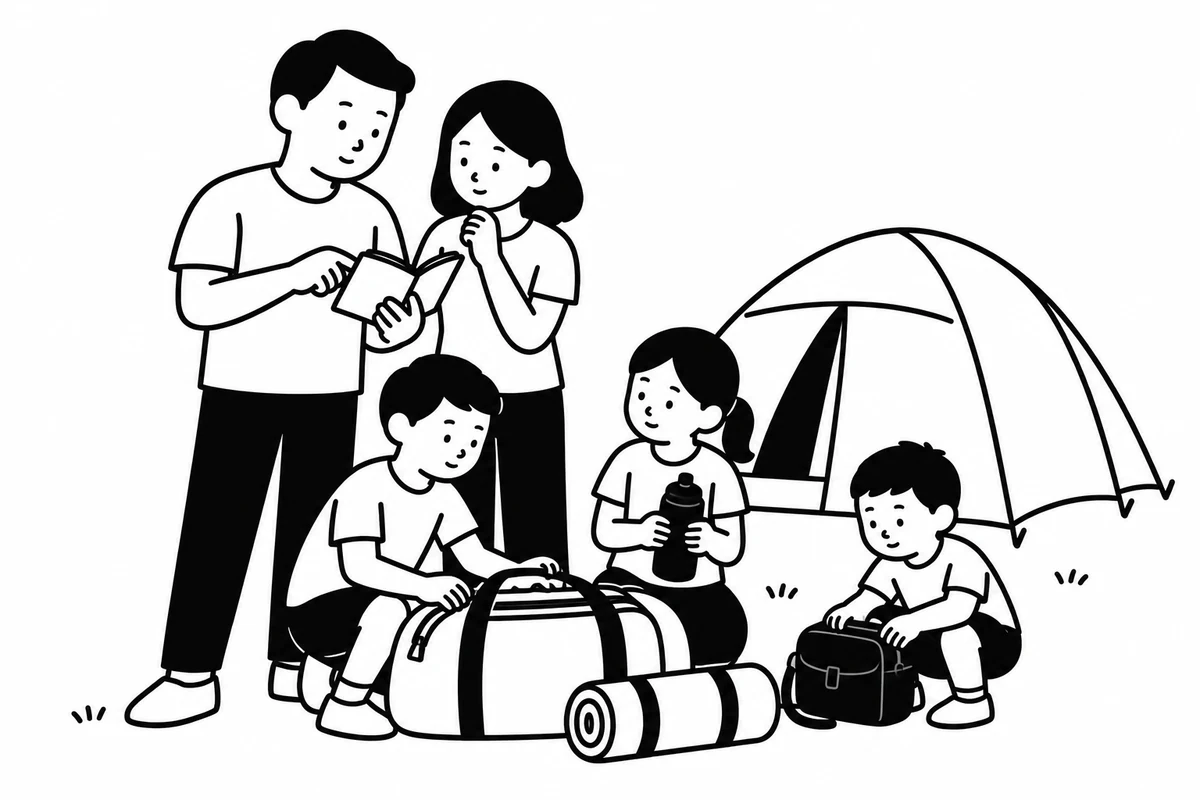
For a family trip, record the equipment you own, where it is stored, and what was missing last time. Add the measurement date to clothing and shoe sizes, and check them again before leaving. For a hobby, bring the previous session's observations to your next practice. In golf, separating “the coach's words” from “my own impression” gives you a clearer reference when looking back.
Even a link from your travel plan to an equipment note can bring your checks together. Saving a note does not automatically create a notification. Reservations, usage rules, and conditions on the day still need separate checking.
For money, record the purpose as well as the amount.
In household and asset notes, bring together “current position and date checked,” “intended use,” and “reason for choosing it and conditions for review.” Ask AI to organize outdated entries and plans that still need confirming. Check against statements and contracts, then use the notes for a conversation with your family or a relevant professional.
Balances do not update automatically. Manual updates or a separately configured connection are needed. This is an example of organizing records, not investment or tax advice. Do not send account numbers or authentication details to AI.
For health, prepare what you want to explain.
Record changes in how you feel, appointment dates, the clinician's explanations, and where original health reports are kept. Gather the questions you want to ask next. If you use AI, ask it to organize the timeline and questions. Do not delegate diagnosis or changes to medication.
Where appropriate, keep health information on your own device without sending it to AI. For family records, check the person's wishes and the scope of sharing. Work and personal notes can be kept separately.
These examples describe general uses. They do not disclose actual personal information, asset amounts, or medical records.
Start with three lines today.
First, distinguish the roles of the tools.
- Obsidian: A place to save your records and judgments.
- AI: A partner for organizing and summarizing the information you provide.
- Backup: A copy kept elsewhere so that you can return to an earlier state.
This article starts with pasting a short passage into AI. Without a folder connection configured, as in this exercise, notes on your device are not read automatically. Keep the record you have last checked in your own notes.
Create a practice vault.
A vault is an ordinary folder containing notes. Create a new one for practice instead of using an existing work vault.
- Install and open the version for your operating system from the Obsidian download page. On a company computer, check installation rules first.
- Select “Create” next to “Create new vault,” then enter “My first notes” under “Vault name.”
- Select “Browse” to choose a location on your computer, then select “Create.” Keeping it on your computer is enough for the first day. Sync can come later.
- Create a note called “Practice,” write one line, and close and reopen it. Check that the line is still there.
Screen labels vary with settings and versions. If you are unsure, consult the official vault creation instructions.
Begin with just two folders.
At the top of Obsidian’s file list, select “New folder,” enter “00_Daily notes,” and press Enter. Repeat for “10_Reference.” Create both directly inside the vault, not inside each other.
My first notes
    00_Daily notes
    10_Reference
Use “00_Daily notes” for what you did, what you noticed, and your next action. Use “10_Reference” for notes you revisit and key points from reference material. Detailed classification can wait.
Put only public information or fictional notes you created into the practice vault. Naming a folder “Do not let AI read this” does not impose an access restriction.
Write three lines under today's date.
In “00_Daily notes,” create a note named with today's date and write three lines.
Prepared for next week's meeting.
What we need to decide is still unclear.
Write three questions to ask the other person.
It does not need to be polished writing. It only needs to make sense to you tomorrow.
When you are comfortable, you can enable “Daily notes” under Core plugins in Settings and set its location to “00_Daily notes.” “Open today's daily note” opens or creates a note for that date. See the official Daily notes explanation for details.
Move just three existing notes.
You do not need to migrate all your past notes. Choose three you will use this week and copy the necessary parts without deleting the originals. Keep the original title, date, and link. For PDF or Word material, a summary and its location are enough to start.
Write this in today's note to create a link to a note with the same name.
[[Questions to check at the meeting]]
Before adding more records, leave a way back to the original material. That is the first step.
Give AI only the parts it needs.
We use Claude here. For the first exercise, paste the fictional note above without connecting a folder.
Open a new chat in Claude and send the following request with your selected note. When using company information, follow the company's designated contracts and operating rules.
The following is a preparation note for next week's meeting.
The purpose is to clarify what we need to decide together.

Organize it in this order:
1. Facts stated in the note
2. What is still unknown
3. Three questions to ask next

Clearly label any inference that is not stated in the note.

[Paste the selected note here]
“What you provided,” “what you will use it for,” and “how you want the answer organized.” Stating these three things makes the response easier to check.
What you send is processed by an external service. Do not mix names, client information, contract terms, or passwords into your practice note. Removing a name does not necessarily make information appropriate to share.
The answer is a draft. You decide what to adopt.
When AI responds, check three things.
- Is it stated in the original note?
- Are the numbers, dates, and names correct?
- Why would you adopt this suggestion?
Suppose AI returns the following suggestion. This is a fictional output example.
AI suggestion: First, confirm the purpose of the meeting.
If you adopt it, put your judgment and reasoning back into your note.
My judgment: I will adopt this suggestion.
Reason: Decisions and topics for discussion are currently mixed together.
Next action: Add one line to the invitation stating what we need to decide.
Do not stop at saving the entire answer. Keep unsupported points marked “needs checking.” Check important figures and rules against the original material or the responsible person. Agreement from another AI is not enough to establish that something is correct.
Look back once a week.
Once a week, choose material from your daily three lines to revisit. If you use AI, share only the parts needed and try this request.
The following are my notes from this week.
Identify three recurring topics.
For each, include the date and a sentence from the supporting note.
Check the evidence yourself and decide on one next step. You do not need to fill in days you missed. When you return after a break, start with today's three lines.
Protect your records and keep going gradually.
Sync and backup do different jobs.
Sync aligns the current state across devices. It can carry a computer's changes to a phone, but deletions and mistaken edits may travel too.
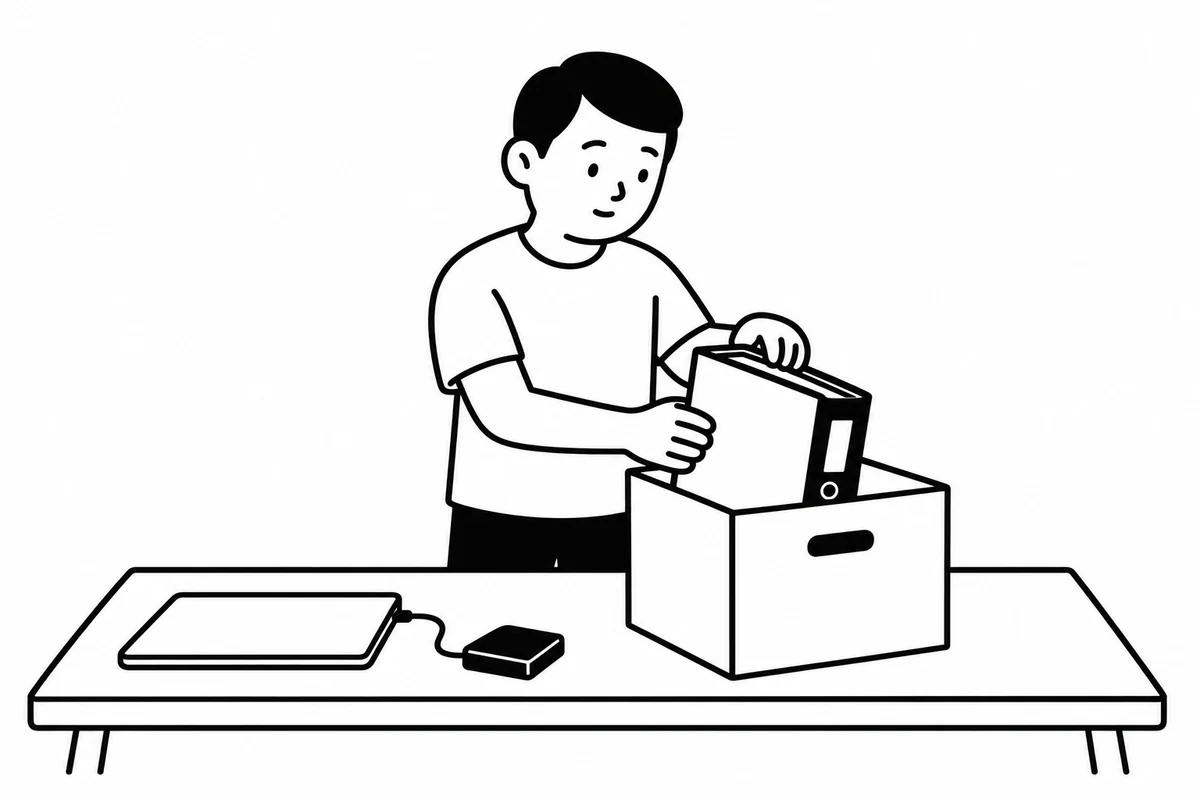
Backup keeps an earlier copy elsewhere. Seeing a folder in the cloud does not establish that you are ready to restore it. Keep a copy and test that you can read its contents.
Make a copy and check that you can read it.
A manual copy is enough to begin. Store it outside the original vault.
- Stop editing on every device. Do not begin new edits on other devices using the same vault.
- Check that sync has finished. If you use sync, wait for the last changes to be reflected.
- Check the actual files on your device. Make sure the files needed for the copy are present locally, not only in the cloud.
- Close Obsidian. Do not resume editing on other devices while making the copy.
- Copy the vault folder. Give it a dated name and save it outside the original vault, such as on an external drive. A compressed copy is also an option.
- Check the copy separately. Do not overwrite the original vault. If compressed, extract the copy to a separate location before checking it. Open a note from the copy in a text editor and check that you can read your latest three lines.
As a beginner's routine, aim for a weekly copy and make one before important edits too. Keep earlier copies. For copies containing confidential information, follow organizational rules for storage and encryption.
Weekly, dated copies are this feature's introductory operating example. See Obsidian's official backup guidance for the underlying principles.
Your phone can come later.
When adding a device, read the official guidance on syncing across devices and choose a method that supports your combination of devices. The Obsidian Sync setup guide is another reference.
Back up an existing vault before moving it, and do not layer sync services on the same vault. Write one line saying “Sync test” and check that you can read it on the other device. Avoid simultaneous editing, and wait for changes to arrive before opening the note there.
If changes do not appear, check that both devices use the same vault and that the connection and sync have completed. Do not immediately delete duplicate files. You can continue using notes on your computer even without sync.
Folder connections are a later step.
If repeatedly pasting text becomes cumbersome, connecting AI to a folder is another option. Installing an application does not by itself define a safe sharing boundary.
Check the provider, what can be read, and what can be written. At work, use tools approved by your administrator. Begin by allowing only a practice folder, not your whole vault or home folder. Use read-only access where possible, and withhold change and deletion permissions until needed.
Inspect the configured permissions. Then use harmless test files to check both that reading within the allowed scope works and that access outside it is denied. An AI response saying “I cannot read it” is not sufficient evidence of a restriction.
Consult the official Claude Desktop local MCP guidance for connection methods and availability. If you are unsure, do not connect the folder. Continue pasting the passages you choose.
You do not have to do everything today.
Today's goals are three small actions.
- Write three lines in your note.
- Give AI only the parts you are allowed to share.
- Bring your judgment and reasoning back to your note.
After a week, check your review habit and backup. Add only notes you use. Sync, folder connections, collaboration, and automation can come later.
Write down “information I may share with AI / information I will not share,” “my review day,” and “my backup location.” That gives you a place to return to.
With your records in your own hands, you can keep going even when you change tools. Start with the smallest setup you can sustain.
Take the magazine with you. Return to official sources.
This HTML feature adapts Yamazaki Office's Japanese magazine “Make room to remember. — Your first note-taking habit with Obsidian and AI,” first edition (revised), September 10, 2026, for the web.
The English PDF brings together examples from management and everyday life, getting started with notes, using AI, making backups, and troubleshooting across 28 pages. Save it, print it, or revisit it at your own pace.
Official sources
Interfaces, features, prices, and privacy settings can change. Check the official material when using the tools.
- Obsidian: Create a vault
- Obsidian: Daily notes
- Claude: Upload files
- Obsidian: Back up your files
- Obsidian: Sync across devices
- Obsidian Sync: Setup
- Claude Desktop: Local MCP
- Obsidian: Pricing
- Claude: Pricing
- Claude: Model improvement privacy settings
Changing a privacy setting does not by itself authorize sending confidential information. Follow your company's contracts and usage rules.
The boundary between human and AI judgment in management.
The information you give AI, and the judgments people continue to own. To discuss designing that boundary in your organization, visit Contact.